.png)
Ava AI Gorgias Integration: Setup Guide 2026
Connect Ava AI to Gorgias in 2026 so every resolved call and abandoned cart callback becomes a tagged support ticket. Step-by-step setup and fixes.
September 22, 2026

Every call Ava AI answers for your Shopify store creates a support event your team needs to see. Instead of checking Ava's call logs in one tab and your Gorgias inbox in another, connect the two so every resolved order, refund, and abandoned cart callback lands in Ava AI as a Gorgias ticket your agents can review, tag, and close without switching screens.
TL;DR
- Ava AI can sync call outcomes into Gorgias tickets in 2026 so phone and chat support share one inbox.
- Setup needs a Gorgias API key and Ava AI's app already installed on your Shopify store, and takes under 15 minutes.
- Outbound abandoned-cart calls can log back to Gorgias too, so agents see recovery attempts next to refund tickets.
- Skip the sync if Gorgias only handles email today, since voice tickets add real volume to that queue.
Why this matters
Gorgias is the ticketing system a large share of Shopify merchants already run their support team through. Ava AI handles the phone channel: answering calls 24/7, resolving order and refund questions, and calling customers back after an abandoned cart. Without a connection between the two, phone resolutions live in Ava's own dashboard while everything else your team touches lives in Gorgias.
That split creates a blind spot. An agent working a Gorgias queue in 2026 has no way to see that a customer already got their refund answer over the phone an hour earlier, so they respond to an email that's already resolved. Connecting Ava AI to Gorgias closes that gap by writing every qualifying call into Gorgias as a ticket, tagged by channel, so nothing gets worked twice.
Before you start
- A Gorgias account with API access. This lives under Settings > REST API and requires an account owner or admin login to generate keys.
- Ava AI installed on your Shopify store with call answering and refund resolution already turned on. The integration syncs call outcomes, so there need to be outcomes to sync.
- The gotcha: Gorgias API keys are tied to a specific subdomain (yourstore.gorgias.com). If you copy a key from a sandbox or trial Gorgias account instead of your live one, calls still process fine in Ava AI but tickets never appear in Gorgias. The sync fails silently, not loudly, so double-check the subdomain string before moving past setup.
Get your Gorgias API credentials
- Log into Gorgias and open Settings.
- Click REST API under the Integrations section.
- Click Create API Key and name it something identifiable, like "Ava AI Voice Sync" — this matters later when you're auditing who has access.
- Copy the generated key and note your exact subdomain as it appears in your Gorgias URL.
Expected result: you have a live API key that hasn't been pasted anywhere else yet, plus the exact subdomain string you'll need in the next step.
Connect Gorgias inside Ava AI
- Open your Ava AI dashboard and go to Settings.
- Select Integrations, then find Gorgias in the list of available connections.
- Click Connect, paste your key into the API Key field, and enter your subdomain into the Store Subdomain field.
- Click Save and watch the status indicator switch from pending to Connected.
Expected result: the integration panel in Ava AI shows Gorgias as connected, and a test ticket shows up in your Gorgias inbox within a couple of minutes of saving.
Configure what gets logged
Not every call needs a ticket. A quick order-status lookup that resolves cleanly might not need agent eyes on it, while a refund or a disputed charge should.
- In the Gorgias integration panel, open Ticket Rules.
- Toggle on the call types you want synced: order status calls, refund resolutions, and abandoned cart callbacks.
- Assign a default Tag, such as "ava-voice," so agents can filter voice-originated tickets inside their normal Gorgias views.
- Set the ticket Channel label to "Phone" so reporting can separate voice volume from email and chat.
Expected result: every qualifying call produces a tagged, channel-labeled ticket in Gorgias, complete with a call summary in the ticket body, instead of a raw log entry only Ava AI can see.
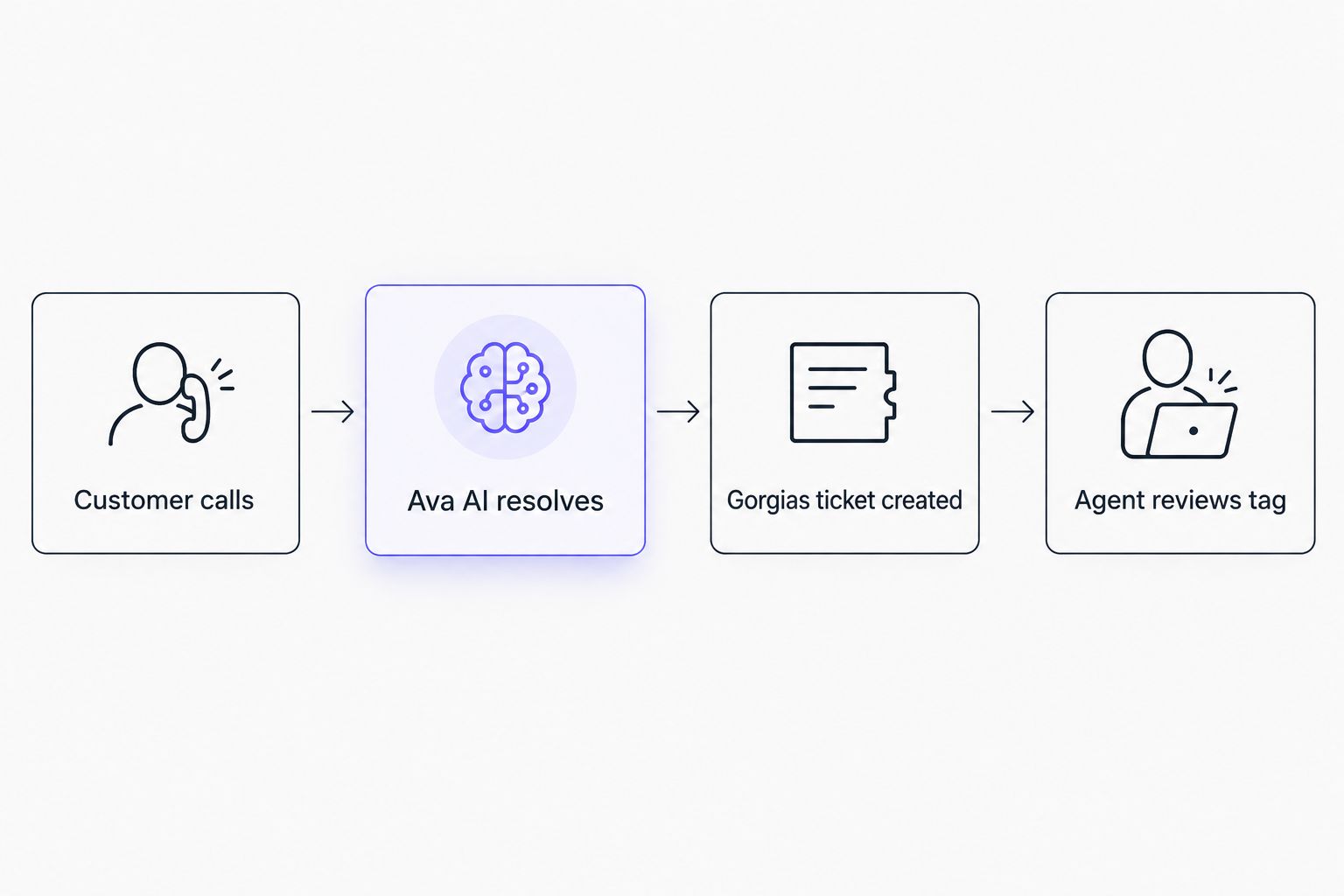
Each resolved call becomes a tagged ticket an agent can filter and close.
Log outbound abandoned cart calls as tickets too
Ava AI also places outbound calls to customers who abandoned checkout, a workflow separate from inbound support but worth routing into the same Gorgias inbox. Based on internal Ava AI data, merchants running outbound abandoned-cart voice calls see recovered revenue average 37x compared to no outbound call at all — individual results vary by store and offer, and this figure isn't tied to a fixed sample size or measurement window.
To route those calls into Gorgias as well:
- In Ticket Rules, toggle on Abandoned cart outreach.
- Set ticket priority to "Follow-up needed" for calls where the customer didn't answer.
- Set priority to "Resolved" for calls where the cart was recovered on the call.
This gives your team visibility into recovery attempts sitting right next to refund and order tickets, instead of a separate cart-recovery report nobody checks daily. For the full setup on the cart-recovery side, the Klaviyo integration guide covers pairing Ava AI's outbound calling with your existing flows.
Connect Gorgias to Ava AI
Start a 7-day free trial and set up the sync in minutes, no commission on recovered revenue.
Troubleshooting
- Tickets aren't appearing at all. Almost always a subdomain mismatch — recheck that the API key came from your live Gorgias account, not a sandbox.
- Duplicate tickets on the same order. Happens when your Gorgias chat widget and the Ava AI phone sync both fire on the same event. Disable one trigger for that order type.
- Tags aren't applying. Gorgias occasionally resets its tag list after an update; re-save the default tag in the Ticket Rules panel to refresh it.
- Call transcript shows in Ava AI but the ticket body is empty. Check that your Gorgias API key was created with ticket write permissions, not read-only.
- Sync stops working after a Gorgias password reset. Resetting the account owner's password can rotate the API key. Generate a fresh key and reconnect it in Ava AI's Integrations panel.
Customize your workflow
Once the Gorgias sync is running, extend it rather than leaving it as a one-time setup. Pair the ticket sync with the complete checkout-to-phone-support workflow to map every stage from checkout drop-off through phone resolution and ticket close. Merchants running high call volume should also review how ticket tags roll up in Gorgias reporting so voice-channel resolution time gets tracked separately from email.
FAQ
Does Ava AI create a Gorgias ticket for every call?
No, only for the call types toggled on in Ticket Rules, typically order status, refunds, and abandoned cart callbacks. You control which calls generate tickets during setup.
Do I need a specific Gorgias plan to connect Ava AI?
You need a Gorgias plan that includes REST API access, found under Settings > REST API. Check your current plan against Gorgias's own documentation to confirm API access is included.
Can outbound abandoned cart calls show up in Gorgias too?
Yes, toggling Abandoned cart outreach in Ticket Rules logs outbound recovery calls as tickets tagged separately from inbound support calls.
What happens if my Gorgias API key stops working?
The sync fails silently, meaning calls still process in Ava AI but tickets stop appearing in Gorgias. Generate a new API key under Settings > REST API and reconnect it in Ava AI's Integrations panel.
Will connecting Gorgias slow down how Ava AI answers calls?
No, the ticket sync happens after a call resolves, not during it. Ava AI answers and resolves the call first, then writes the outcome to Gorgias.
Can I filter voice tickets separately from email and chat in Gorgias?
Yes, setting the Channel label to Phone during setup lets agents and reports filter voice-originated tickets apart from other channels.
Is there a free trial to test the Gorgias integration before committing?
Ava AI offers a 7-day free trial, which is enough time to connect Gorgias, run test calls, and confirm tickets are syncing correctly.
One last thing
The subdomain mismatch is the single most common reason this integration looks broken when it isn't — calls keep resolving normally in Ava AI's dashboard, so most merchants don't notice the Gorgias side is empty until an agent asks why they haven't seen any phone tickets in a week. Check the subdomain string against your live Gorgias URL before you assume anything else is wrong.